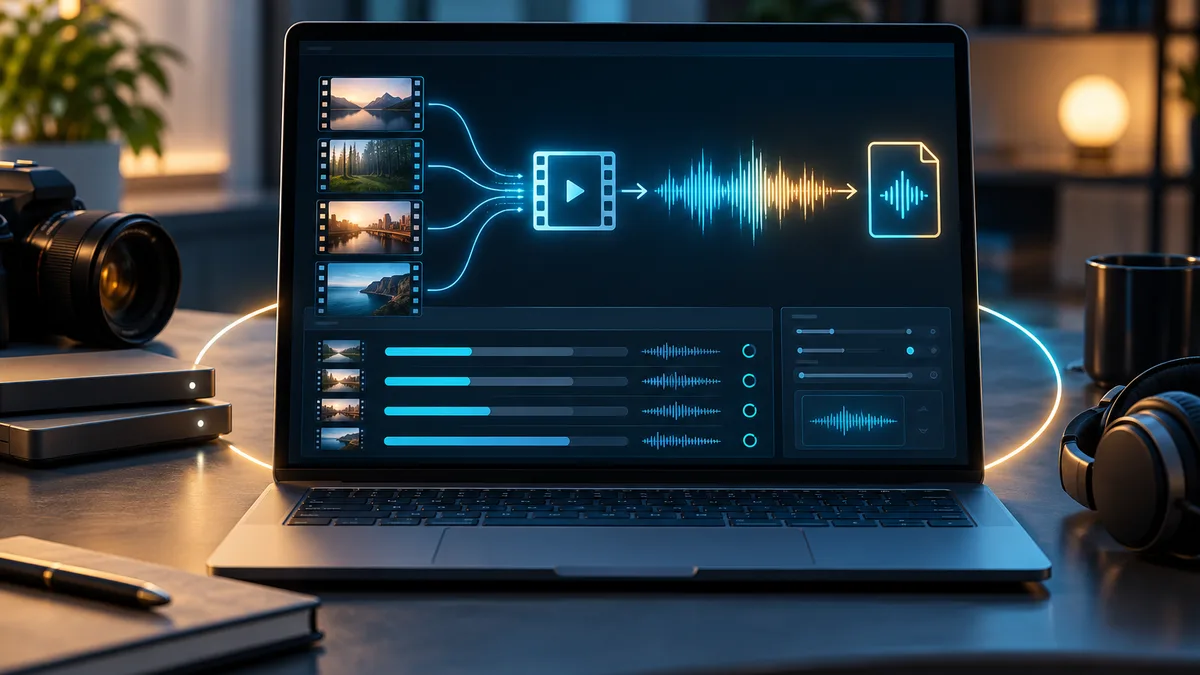
You want the audio from a video — a recorded talk, a song from a clip, the narration off a screen recording — as a standalone MP3. The “video to MP3” sites do it, but they want you to upload the file and often cap length or stamp the output. For a long lecture recording or anything private, that’s a hassle you don’t need.
FFmpeg in WSL extracts the audio locally, for free, in one command. Convert it to MP3, or copy it out losslessly in its original format. Nothing gets uploaded.
No WSL yet? See the WSL install guide.
Install FFmpeg
sudo apt update && sudo apt install -y ffmpegConfirm:
ffmpeg -versionExtract audio as MP3
This drops the video and encodes the audio to MP3:
ffmpeg -i input.mp4 -vn -c:a libmp3lame -b:a 192k output.mp3-vnmeans “no video” — only the audio is kept.-c:a libmp3lameis the MP3 encoder.-b:a 192ksets the audio bitrate.
That’s the whole job. input.mp4 is untouched; output.mp3 holds the soundtrack.
Choosing MP3 quality
You can set a constant bitrate or let FFmpeg vary it for better quality-per-size:
ffmpeg -i input.mp4 -vn -c:a libmp3lame -q:a 2 output.mp3-q:a 2 is a high-quality variable bitrate setting (lower number = higher quality).
MP3 quality settings
| -b:a 128k | Smaller files, fine for speech |
|---|---|
| -b:a 192k | Good general quality |
| -b:a 320k | Maximum MP3 bitrate, near-transparent |
| -q:a 2 | High-quality VBR, smaller than 320k CBR |
| -q:a 0 | Highest-quality VBR |
Extract losslessly (keep the original format)
If you don’t specifically need MP3, copying the audio stream out is instant and loses nothing. First check what the audio actually is:
ffprobe input.mp4If it reports AAC (common in MP4), copy it into an .m4a with no re-encoding:
ffmpeg -i input.mp4 -vn -c:a copy output.m4a-c:a copy repackages the existing audio unchanged. Use this when you want the best possible quality and don’t need the MP3 format specifically.
Batch a whole folder
Turn every MP4 in a folder into a matching MP3:
mkdir -p audio
for f in *.mp4; do ffmpeg -i "$f" -vn -c:a libmp3lame -b:a 192k "audio/${f%.mp4}.mp3"; done
The MP3s land in audio/ and the videos stay in place. Change *.mp4 to *.mkv or *.mov for other formats.
Wrapping up
Extracting audio on Windows is one FFmpeg command: ffmpeg -i input.mp4 -vn -c:a libmp3lame -b:a 192k output.mp3 for MP3, or -c:a copy to lift the original track losslessly. Set the bitrate to match the source rather than inflating it, and use a loop to clear a whole folder.
It’s free, it batches, and it runs in WSL — so your recordings never get uploaded. The same FFmpeg install also compresses video and converts MOV/MKV to MP4.