You plug in a second screen, expect it to light up, and get nothing. Maybe the monitor says “no signal,” maybe it stays fully dark, or maybe Windows acts like the cable isn’t even there. A blank external display is frustrating precisely because the cause could be almost anything between the monitor’s power button and the graphics driver.
The good news: most of these cases come down to a handful of things. A wrong input source on the monitor, a projection mode set to “PC screen only,” a marginal cable, or a graphics driver that got swapped out by an update. This guide walks the chain from the outside in — physical connection first, then Windows settings, then drivers — so you don’t waste time reinstalling software when the real problem is a cable in the wrong port.
Start with the quick wins
Before changing any settings, rule out the two-second fixes. They resolve a large share of “not detected” reports.
- Press Windows + P and pick Extend or Duplicate. If projection was set to “PC screen only,” the monitor was never going to show anything.
- Check the monitor’s input source with its physical buttons or on-screen menu. A monitor set to HDMI 1 won’t show a PC plugged into DisplayPort.
- Power-cycle the monitor. Unplug it from the wall, wait ten seconds, plug it back in. This clears a surprising number of handshake glitches.
Check cables, ports, and adapters
Display problems hide in the physical layer more often than people expect. Reseat both ends of the video cable firmly; a slightly loose DisplayPort connector can drop the signal entirely.
If your PC has more than one video output, try a different one. A dedicated graphics card and the motherboard’s built-in ports are not always both active, and plugging into the wrong one gives you a dead screen even though everything else is correct.
Common connection culprits
| Monitor on, 'no signal' | Wrong input source or loose cable |
|---|---|
| Works on one port, not another | Inactive port or disabled onboard GPU |
| USB-C connected, no video | Port doesn't carry DisplayPort/video |
| Through a dock or hub, blank | Dock firmware, power, or bandwidth limit |
| Flickers then drops | Failing cable or refresh rate too high |
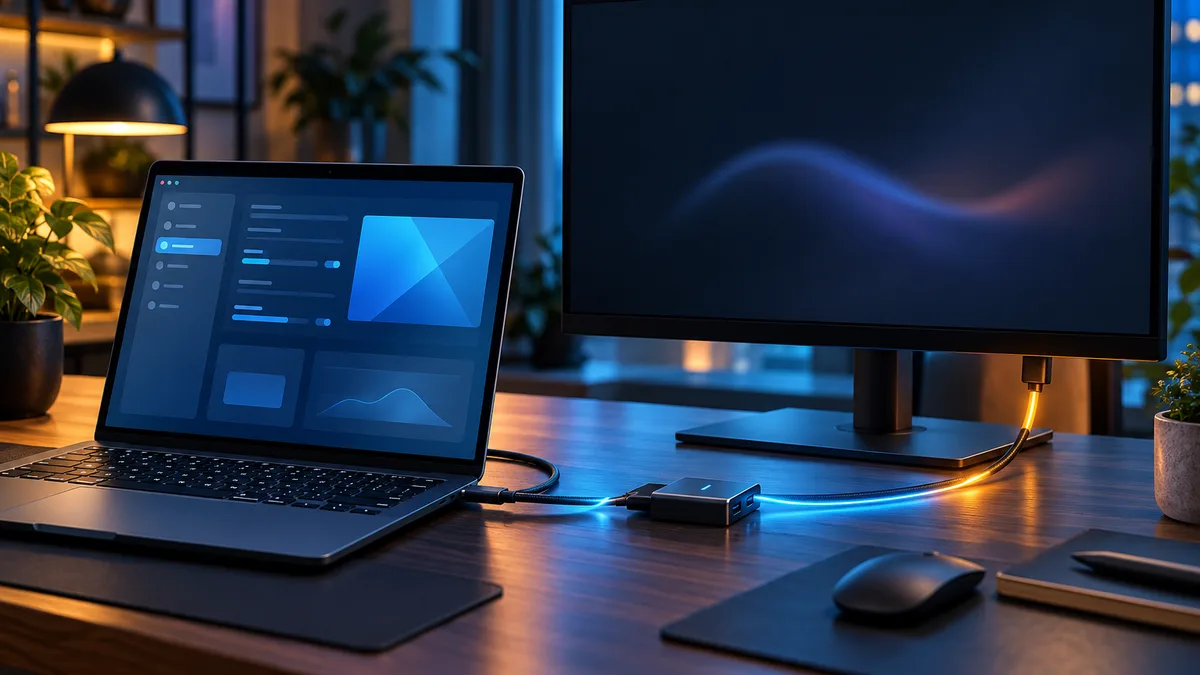
USB-C is its own trap. Not every USB-C port supports video output, and a cable or adapter that charges fine may not pass a display signal. When you’re using a docking station or hub, plug the monitor straight into the PC as a test. If it lights up directly but not through the dock, the dock (or its firmware) is the problem, not Windows.
Make Windows look for the display
Modern monitors announce themselves to Windows automatically. Older ones, or displays connected through certain adapters, sometimes need a manual nudge.
Open Settings → System → Display, scroll down to Multiple displays, and select Detect. Windows re-scans the outputs for a display that didn’t report itself.
While you’re there, confirm how Windows is handling the screens. If it sees the monitor but the desktop isn’t appearing on it, the arrangement might be set to mirror onto the wrong panel, or the second display might be set as disconnected. The full layout, primary-display, and arrangement options are covered in Microsoft’s guide to using multiple monitors in Windows, and the steps are the same idea on both Windows 10 and 11.
Update, roll back, or reinstall the graphics driver
Once you’ve confirmed the hardware path and Windows still won’t detect the screen, the graphics driver is the next suspect. This is also the usual reason a monitor that worked yesterday stops being detected after a Windows update — the update replaced a working driver with one that handles your display differently.
Open Device Manager (right-click Start → Device Manager), expand Display adapters, and right-click your graphics device.
- Update driver → search automatically, to let Windows pull a current version.
- If detection broke right after an update, open Properties → Driver tab → Roll Back Driver to return to the version that worked. If the button is greyed out, no previous version is stored.
- For a stubborn case, uninstall the device, then reboot. Windows reinstalls a fresh display driver on startup, which clears a corrupted install.
After any driver change, reboot and check the display again. A reboot matters here — a half-loaded driver can report a different result than a clean one.
Resolution and refresh rate problems
Sometimes Windows technically detects the monitor, but it stays black or shows an “out of range” message. That usually means the signal is set to a resolution or refresh rate the monitor can’t display.
If you can see anything at all (even briefly, or on the laptop’s own screen), set a safe mode:
- Settings → System → Display → Advanced display, then drop the refresh rate to 60 Hz.
- Lower the resolution to a standard value like 1920×1080, confirm the monitor comes back, then raise it again in steps.
High-refresh and high-resolution combinations can exceed what a given cable or port supports. An older HDMI cable, for instance, may not carry 4K at 120 Hz even if both the PC and monitor can. When in doubt, a shorter, newer, certified cable removes that variable.
Detection troubleshooting checklist
- Windows + P set to Extend or Duplicate
- Monitor input source matches the cable used
- Cable reseated; tried a second port and a known-good cable
- Settings > System > Display > Detect run
- Display driver updated, rolled back, or reinstalled
- Refresh rate and resolution set to safe values
- Tested without a dock/hub in the path
When the screen still won’t show up
If you’ve worked through cables, ports, projection mode, Detect, and the graphics driver and the monitor is still dark, narrow it down with a clean isolation test. Connect the monitor directly to a different known-good computer with a known-good cable. If it stays blank there too, the monitor or its power supply is failing. If it works there, the problem is on the original PC — most likely a port, the GPU, or a deeper driver issue.
A few other things worth a look while you’re here. If your network or other hardware also acts up after updates, the broader pattern might point at a driver or update problem rather than the display alone — our notes on fixing Wi-Fi that’s connected but has no internet cover the same driver-reset logic for a different device. And if a recent update broke several things at once, resetting Windows 11 without losing your files is a heavier but reliable fallback.
Wrapping up
Treat a missing external monitor as a chain, not a single fault. Confirm the physical link first — input source, cable, port, and any dock in the middle — because that’s where most “not detected” cases actually live. Then use Windows + P and the Detect button to rule out projection and arrangement settings. Only after that should you touch the graphics driver, where an update-swapped driver is the usual villain.
Work top to bottom and you’ll usually find the break without guessing. The driver steps are the heaviest hammer, so save them for after you’ve proven the hardware path is good.